
HOW TO START AMAZON FBA · 2026
Amazon FBA Seller Central — A Complete Beginner’s Walkthrough
By Brandhunterz Ltd | Company No: 15342697 | 13 minute read
Affiliate Disclosure: This article contains affiliate links. If you purchase through our links we may earn a commission at no extra cost to you. We only recommend tools we genuinely use and believe in. Read our full disclaimer.
Amazon Seller Central is the control panel for your entire Amazon FBA business. It is where you manage your inventory create product listings track your sales monitor your account health process returns and access every tool Amazon provides to sellers. For new sellers Seller Central can feel overwhelming — a dense dashboard filled with menus sub-menus reports and metrics that seem impossible to navigate without experience.
We are Brandhunterz Ltd — a UK registered wholesale sourcing company (Company No: 15342697) — and in this complete beginner’s walkthrough we take you through every section of Amazon Seller Central that matters for a new FBA wholesale seller. By the end of this article you will know exactly where to find what you need and how to use the platform confidently from day one.
💡 Quick Summary
The five sections of Seller Central every new FBA seller must master are Manage Inventory (your product listings and FBA stock), Shipping Queue (creating and tracking FBA shipments), Account Health (your seller performance metrics), Reports (sales data and payment reports), and Advertising (Sponsored Products campaigns). Use Helium 10 alongside Seller Central for deeper keyword research and listing optimisation that goes beyond what Amazon’s native tools provide.
The Seller Central Homepage — Your Daily Dashboard
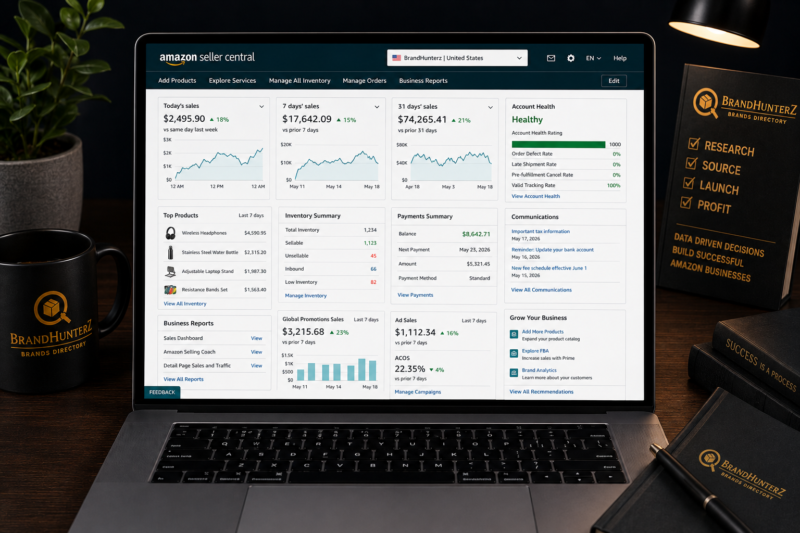
When you log into Seller Central the first thing you see is your homepage dashboard. This is your daily command centre — a summary of the most important metrics across your account updated in real time. Understanding what each section of the homepage shows and what to look for each day is the foundation of good account management.
Sales Summary Widget
The Sales Summary widget at the top of the homepage shows your total ordered product sales for today this week this month and this year. The numbers update every hour as new orders come in. Check this widget every morning as the first indicator of whether your listings are active and your Buy Box position is healthy. A sudden drop in today’s sales compared to recent daily averages can signal a pricing issue a Buy Box loss or a listing suppression that needs immediate attention.
Account Health Summary
The Account Health section on the homepage shows a traffic light status for your key seller performance metrics. Green means all metrics are within Amazon’s acceptable thresholds. Yellow means a metric is approaching a threshold requiring attention. Red means a metric has breached Amazon’s acceptable range and action is required to prevent account suspension. Check this section every day — ignoring a red or yellow metric for even a few days can allow it to deteriorate to a point where Amazon takes enforcement action against your account.
Payments Summary
The Payments widget shows your available balance — the amount of money available for your next disbursement to your bank account. Amazon disburses payments every 14 days and the available balance represents your sales proceeds minus fees and any holds. If you see an unexpected hold on your balance check the Payments section in detail for the reason — holds are typically related to A-to-Z guarantee claims returns or account health issues.
The Inventory Menu — Managing Your FBA Stock
The Inventory menu is where you spend most of your time as a new FBA wholesale seller. It contains everything related to your product listings and your FBA stock levels. Here are the key sections within the Inventory menu:
Manage Inventory
Manage Inventory shows every active inactive and FBA listing in your account. From here you can check the current status of each listing add a product to a new FBA shipment view your current FBA stock levels and identify any suppressed or inactive listings that need attention. Check Manage Inventory daily to ensure all your listings are active and your stock levels are sufficient to meet expected demand.
| Listing Status | What It Means | Action Required |
|---|---|---|
| Active | Listing is live and available for customers to purchase | None — monitor stock levels and pricing |
| Inactive — Out of Stock | FBA stock is at zero — listing is not showing to customers | Send replenishment immediately |
| Suppressed | Listing has been removed from search results due to a data issue | Fix the listed issue immediately |
| Incomplete | Listing is missing required information before it can go live | Complete missing listing data |
Manage FBA Inventory
Manage FBA Inventory is a dedicated view showing only your FBA listings with their current fulfilment centre stock levels. It shows your Available units (ready to ship), Reserved units (in transit between fulfilment centres or reserved for open orders), Inbound units (on their way to FBA in a current shipment), and Unfulfillable units (damaged or defective stock that needs to be removed or disposed of). Review this view weekly to identify products approaching zero stock that need replenishment orders placed with your wholesale suppliers.
Add a Product
The Add a Product tool is where you create new listings or match your offer to existing Amazon product pages. For wholesale sellers you will almost always be matching to an existing listing rather than creating a new one. Search by ASIN EAN or product name to find the correct existing listing then select your condition — New for most wholesale products — and your fulfilment method — Fulfilled by Amazon. Setting the correct condition and fulfilment method from the beginning prevents listing errors that can cause customer complaints.
The Shipping Menu — Creating and Tracking FBA Shipments
The Shipping menu contains everything related to sending your inventory to Amazon’s fulfilment centres. For new FBA sellers this is one of the most frequently visited sections of Seller Central — you will use it every time you need to send new stock to FBA.
Shipping Queue
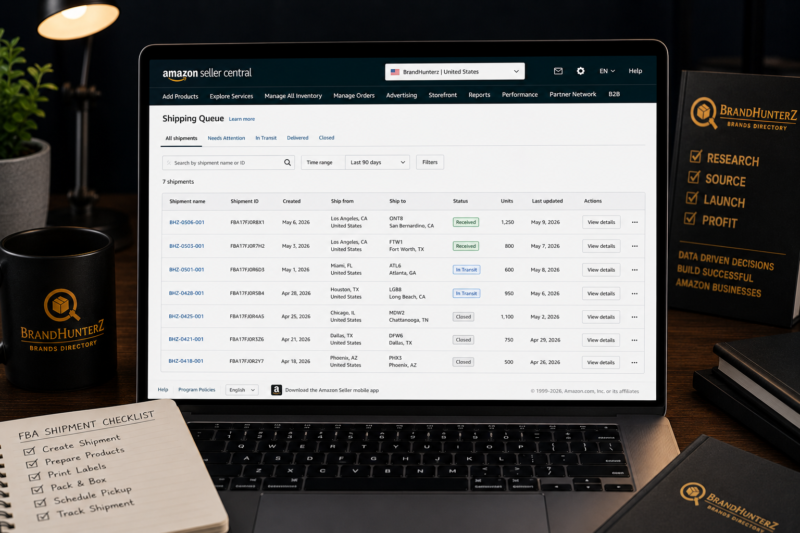
The Shipping Queue shows all your current FBA shipments and their status. A new shipment starts as Working — meaning you are still creating it in Seller Central. Once you confirm and book the shipment the status changes to Ready to Ship. After your courier collects it the status moves to Shipped. When Amazon receives and begins processing your cartons the status changes to Receiving. Finally when all units are fully processed and available in FBA inventory the status changes to Closed. Monitor each shipment through this progression and act quickly if any shipment stays in an unexpected status for more than 5 business days.
Track Shipment
Clicking into any individual shipment in the Shipping Queue shows you the detailed tracking status. You can see exactly how many units Amazon has received and checked in out of the total you declared. If Amazon shows fewer received units than you sent this section is where you identify and investigate the discrepancy before it passes the 90-day reconciliation window. Always compare the received count against your packing list when each shipment closes.
Account Health — The Most Important Metrics to Monitor
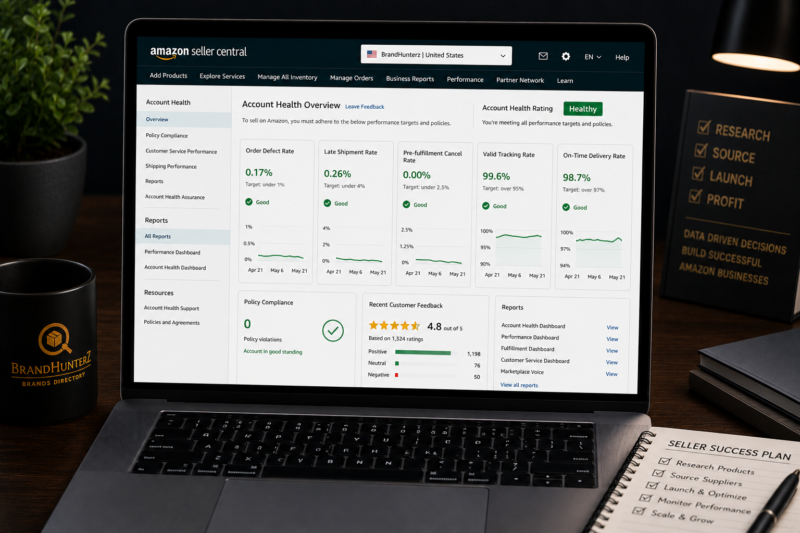
Account Health is the section of Seller Central that shows your seller performance metrics — the data Amazon uses to assess whether you are providing a good customer experience. Maintaining strong account health metrics is not optional — sellers whose metrics breach Amazon’s minimum thresholds face listing suppression account suspension and in serious cases permanent bans.
| Metric | Amazon’s Minimum Threshold | What Affects It |
|---|---|---|
| Order Defect Rate (ODR) | Must be under 1% | Negative feedback A-to-Z claims chargebacks |
| Late Shipment Rate | Must be under 4% | Merchant fulfilled orders shipped late (FBA not affected) |
| Pre-fulfilment Cancel Rate | Must be under 2.5% | Cancelling orders before despatch (FBA not affected) |
| Valid Tracking Rate | Must be over 95% | Merchant fulfilled orders — FBA automatically compliant |
| Feedback Rating | Aim for above 95% | Seller feedback from customers on fulfilled orders |
💡 FBA Sellers Have a Natural Account Health Advantage
When you use FBA Amazon handles all fulfilment on your behalf — meaning your Late Shipment Rate, Pre-fulfilment Cancel Rate, and Valid Tracking Rate are all automatically maintained at compliant levels. The only metrics FBA sellers need to actively monitor are the Order Defect Rate (driven by negative customer feedback and A-to-Z claims) and their overall Feedback Rating. This is another significant operational advantage of FBA over FBM for new sellers.
The Reports Menu — Understanding Your Sales Data
The Reports section of Seller Central gives you detailed financial and operational data about your business. For new FBA sellers the most important reports to access regularly are:
Payments — Transaction View
The Payments Transaction View shows every financial transaction on your account — sales refunds FBA fees storage charges advertising charges and disbursements. Review this report monthly to reconcile your actual profitability against your pre-order margin calculations. The transaction view is also essential for VAT reporting and bookkeeping — export it monthly and share with your accountant.
Business Reports — Sales by ASIN
The Sales by ASIN report shows you the units ordered sessions (page views) and unit session percentage (conversion rate) for every listing in your account. This data helps you identify which products are generating strong conversion rates and which are getting traffic but not converting to sales. Use Helium 10 alongside this data to identify keyword opportunities that can improve your listings and drive more organic traffic to underperforming products.
FBA Reports — Inventory Health
The FBA Inventory Health Report shows your estimated sell-through rate — how long your current FBA stock will last at your current sales velocity — alongside storage cost projections and long-term storage fee warnings. Review this report monthly to identify products with slow sell-through rates before they accumulate significant storage fees and to plan reorder timing for fast-moving products approaching zero stock.
The Advertising Menu — Getting Started With Sponsored Products
The Advertising menu gives you access to Amazon’s paid advertising platform — Sponsored Products, Sponsored Brands, and Sponsored Display. For new wholesale FBA sellers Sponsored Products is the most immediately relevant and accessible advertising format.
Should New Sellers Run Advertising?
For wholesale sellers advertising is generally not essential in the early stages because you are selling existing branded products that already have search demand and organic traffic. Unlike private label sellers who need advertising to build keyword rank for a brand new product wholesale sellers can generate organic Buy Box sales without advertising spend. Focus on getting your stock right your pricing competitive and your account health strong before investing in advertising.
When you do start advertising begin with Automatic Sponsored Products campaigns — where Amazon chooses which search terms to show your ads on based on your product listing. Set a conservative daily budget of £5 to £10 and run the campaign for 2 to 4 weeks before reviewing performance data. Use the search term report to identify which keywords are driving clicks and conversions then build targeted Manual campaigns around those high-performing terms.
The Messages Section — Handling Customer Communication
Amazon’s Buyer-Seller Messaging system is accessed through the Messages section of Seller Central. Amazon’s communication policies are strict — you can only contact buyers to resolve issues related to their order and must respond to all customer messages within 24 hours including weekends and bank holidays. A response time exceeding 24 hours counts negatively against your account health metrics.
For FBA sellers most customer service — including delivery enquiries and return requests — is handled directly by Amazon without requiring your involvement. However some customers may still contact you through the messaging system with product questions or feedback. Respond to every message professionally and promptly even if the message relates to an issue Amazon is responsible for handling.
Your Daily Seller Central Routine — A New Seller Checklist
Establishing a consistent daily routine in Seller Central prevents small issues from becoming large problems. Here is the daily checklist every new FBA wholesale seller should follow:
📅 Daily Seller Central Routine — New FBA Seller
- Morning (5 minutes): Check homepage Sales Summary — compare today vs daily average
- Morning (2 minutes): Check Account Health — confirm all metrics are green
- Morning (3 minutes): Check Messages — respond to any buyer messages within the 24-hour window
- Morning (5 minutes): Check Manage Inventory — confirm all listings are Active with stock available
- Morning (3 minutes): Check Shipping Queue — confirm active shipments are progressing through expected statuses
- Weekly (30 minutes): Review FBA Inventory Health Report — identify reorder triggers and low stock alerts
- Monthly (1 hour): Download Payments Transaction Report — reconcile actual margins and share with accountant
Using Helium 10 Alongside Seller Central
While Seller Central gives you the operational tools to run your Amazon FBA business Helium 10 gives you the analytical intelligence to grow it. The two platforms work best together — use Seller Central to manage your day-to-day operations and Helium 10 to drive better product research decisions and listing optimisation.
| Task | Use Seller Central | Use Helium 10 |
|---|---|---|
| Product Research | Browse Best Sellers list | Black Box and X-Ray for deep revenue data |
| Keyword Research | Basic search term reports | Cerebro and Magnet for full keyword data |
| Listing Optimisation | Edit listing title bullets and description | Scribbles for keyword integration scoring |
| Inventory Management | Manage FBA Inventory and shipments | Inventory Management tool for reorder alerts |
| Account Health | Account Health dashboard monitoring | Alerts for keyword rank changes |
Frequently Asked Questions
How Do I Contact Amazon Seller Support?
Amazon Seller Support is accessed through the Help section in the top right corner of Seller Central. Click Help then Contact Us to open a support case. You can choose to contact Amazon via live chat email or phone callback. For urgent account issues such as a listing being suppressed or an account suspension use the phone callback option for the fastest response. For non-urgent queries use email and expect a response within 24 to 48 hours.
Can I Access Seller Central on Mobile?
Yes — Amazon provides the Amazon Seller app for iOS and Android which gives you access to core Seller Central functions on your smartphone including sales monitoring inventory levels customer messages and account health. The app is useful for checking your daily sales metrics on the go but the full desktop version of Seller Central is required for creating FBA shipments running detailed reports and making complex account changes.
What is the Buy Box and How Do I Win It?
The Buy Box is the Add to Basket button on Amazon product pages — the button most customers click to purchase. You can monitor your Buy Box share in the Business Reports section of Seller Central under Detail Page Sales and Traffic. To maximise your Buy Box win rate as an FBA seller keep your price competitive within the current Buy Box price range maintain strong account health metrics and ensure your FBA stock is consistently available and not running low.
How Do I Handle a Negative Customer Review?
Product reviews and seller feedback are managed differently in Seller Central. Negative seller feedback — left on your seller profile rather than the product — can be removed if it contains content that violates Amazon’s feedback policy such as product reviews disguised as seller feedback. Open a case with Seller Support to request removal of policy-violating feedback. Negative product reviews on the ASIN itself cannot be removed by sellers — Amazon’s review authenticity systems manage these independently.
Related Articles — Keep Learning
- How to Start Amazon FBA in 2026 — Complete Beginner Guide
- How to Open an Amazon Seller Central Account Step by Step
- How to Find Your First Wholesale Product to Sell on Amazon FBA
- How to Calculate Amazon FBA Fees and Profit Margins
- How to Send Your First Shipment to Amazon FBA Warehouses
- How to Get Ungated on Amazon — A Beginner’s Guide
- How to Read a Keepa Graph for Amazon FBA Wholesale Research
- How to Scale Your Amazon FBA Business from £0 to £10,000 Monthly
- Browse the Brandhunterz Brands Directory — Free Access
FIND YOUR FIRST WHOLESALE PRODUCT TODAY
Browse Verified Wholesale Brands — Free Access
Now you know your way around Seller Central the next step is filling it with profitable wholesale products. The Brandhunterz Brands Directory gives you instant free access to verified wholesale brands with real trade contacts confirmed minimum orders and Amazon FBA approval status.
About the Author
This article is written by the team at Brandhunterz Ltd — a UK registered Amazon FBA wholesale sourcing company (Company No: 15342697) registered in England and Wales since 2023. Visit brandhunterz.com to learn more.