
AMAZON FBA WHOLESALE TIPS
How to Send Your First FBA Shipment to Amazon — Complete Step by Step Guide
By Brandhunterz Ltd | Company No: 15342697 | 13 minute read
Affiliate Disclosure: This article contains affiliate links. If you purchase through our links we may earn a commission at no extra cost to you. We only recommend tools we genuinely use and believe in. Read our full disclaimer.
Sending your first FBA shipment to Amazon is one of the most exciting moments in your wholesale journey. It is the point at which your business becomes real — your stock moves into Amazon’s fulfilment network and your listing goes live for millions of customers to find and purchase. But it is also one of the most common points where new sellers make costly mistakes that delay their launch, generate unexpected fees or result in rejected inventory at the warehouse.
We are Brandhunterz Ltd — a UK registered wholesale sourcing company (Company No: 15342697) — and in this complete step by step guide we walk you through every stage of creating and sending your first Amazon FBA shipment correctly — from setting up your shipment plan in Seller Central through to labelling, packing, booking your courier and monitoring the check-in process.
💡 Quick Summary
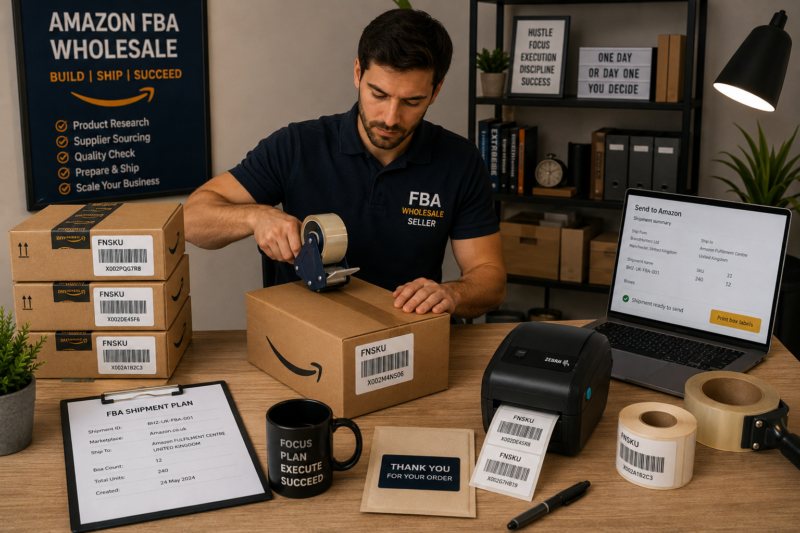
Creating your first FBA shipment involves listing your product in Seller Central, creating a shipment plan, printing and applying FNSKU labels, packing your boxes to Amazon’s requirements, booking a courier through Amazon’s Partnered Carrier programme and monitoring check-in. Allow 2 to 4 hours for your first shipment — it becomes significantly faster with practice.
What You Need Before You Start
Gather everything listed below before starting your shipment plan in Seller Central. Missing any item halfway through the process causes delays and frustration:
| Item Required | Detail | Essential |
|---|---|---|
| Active Seller Central account | Professional plan fully verified and FBA enabled | Yes |
| Wholesale stock received | Products delivered and counted from your supplier | Yes |
| Product listed in Seller Central | Your offer added to the existing Amazon listing as FBA | Yes |
| Label printer | Thermal printer strongly recommended for clean barcodes | Yes |
| Label stock | 40x30mm adhesive labels — standard FNSKU label size | Yes |
| Cardboard shipping boxes | New double-wall boxes in appropriate sizes | Yes |
| Packing materials | Bubble wrap or packing paper to fill empty box space | Yes |
| Strong packing tape | Clear packing tape minimum 50mm wide — no masking tape | Yes |
| Weighing scales | For accurate box weights — each box must be under 23kg | Yes |
| Tape measure | To measure box dimensions for Seller Central entry | Yes |
💡 Invest in a Thermal Label Printer
A thermal label printer is the single most important piece of equipment for an FBA seller. Inkjet and laser-printed labels can smudge, fade or produce barcodes that fail to scan at Amazon’s warehouse — causing rejected shipments and significant delays. A Dymo or Zebra thermal label printer costs £60 to £150 and produces crisp permanent barcodes that never fail. Buy one before your first shipment.
Step by Step — Creating Your FBA Shipment in Seller Central
List Your Product as FBA in Seller Central
Log into Seller Central and go to Catalogue then Add Products. Search for your product by ASIN, EAN or product name. Find the existing Amazon listing for your wholesale product and click Sell This Product. Set your selling price at or above MAP, select Fulfilled by Amazon as your fulfilment channel and save your listing. Your offer is now on the listing — but your inventory quantity is zero until you create a shipment.
Begin Your Shipment Plan
Go to Inventory then Manage FBA Inventory. Find your product and from the dropdown menu select Send or Replenish Inventory. This opens the Send to Amazon workflow — Amazon’s step-by-step shipment creation tool. Alternatively navigate directly to Send to Amazon from the Shipments menu in Seller Central.
Confirm Your Ship-From Address
Enter or confirm the address you are shipping from — your home, business address or prep centre. Amazon uses this to calculate shipping costs and assign your shipment to the most appropriate fulfilment centre. This address must be accurate — it is used to generate your courier labels and any discrepancy can cause shipment routing problems.
Select Packing Type and Enter Quantity
Choose Individual Units for your first shipment — this allows flexibility in how you pack your boxes. Enter the exact number of units you are sending. Count your stock physically before entering this number — inventory discrepancies between what you declare and what Amazon receives must be investigated and can delay your inventory becoming available. Double check your count before confirming.
Choose Merchant Labels and Print Your FNSKUs
Select Merchant Labels — meaning you will label the products yourself. This is free. Download your FNSKU labels from Seller Central and print them on your thermal printer using 40x30mm adhesive label stock. Print a test label first and scan it with a barcode scanner app on your phone to confirm it reads correctly before printing the full batch. If the barcode does not scan clearly the label will fail at the Amazon warehouse.
Review Preparation Requirements
Seller Central will list any preparation requirements for your specific product — such as poly-bagging, bubble-wrapping, or applying suffocation warning labels. Read these carefully. Failing to meet preparation requirements results in Amazon applying the prep themselves at your cost — typically £0.15 to £1.50 per unit — or in some cases rejecting units entirely.
Confirm and Approve Your Shipment
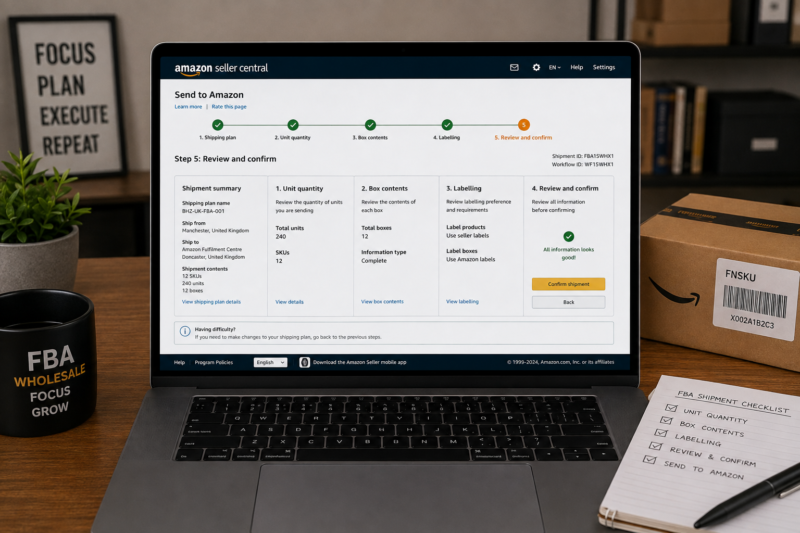
Review the complete shipment summary — destination fulfilment centre, total units, packing type and any fees. Click Confirm and Continue. Amazon will now assign your shipment a unique Shipment ID and confirm the fulfilment centre address your boxes must be delivered to. Note the destination address — you will need it for your courier booking.
Labelling Your Products — The Critical Rules
Labelling is where most first-time FBA shippers make mistakes. Apply every label precisely following these rules before packing a single unit into a box:
| Rule | Detail |
|---|---|
| Cover ALL existing barcodes | Amazon scanners must read only your FNSKU — any visible existing barcode causes a scan error |
| Apply on flat scannable surface | Never apply on curves, edges or raised surfaces — the barcode must lie completely flat |
| One FNSKU label per unit | Multiple labels on the same unit cause scan confusion and processing errors |
| Label must not be damaged | Creased, torn or smudged labels will fail to scan and the unit will be quarantined |
| Scan test before bulk printing | Use a free barcode scanner app to confirm the FNSKU label scans to the correct ASIN |
| Label all units before packing | Complete all labelling first then pack into boxes — do not mix labelling and packing |
Packing Your Boxes to Amazon’s Requirements
Amazon has specific requirements for how inbound FBA shipment boxes must be packed. Boxes that do not meet these requirements may be refused at the fulfilment centre or incur additional handling charges:
| Box Requirement | Specification |
|---|---|
| Maximum box weight | 23kg per box — weigh every box before sealing and booking the courier |
| Maximum dimensions | 63.5cm on any single side — measure before sealing |
| Box condition | New or structurally sound — no crushed or damaged boxes |
| Sealing requirements | H-tape method on all seams — top, bottom and both sides sealed with 50mm+ packing tape |
| No movement inside box | Fill all empty space with bubble wrap or paper — nothing should shift when shaken |
| Exterior branding | Cover or remove all external branding from reused boxes — plain brown exterior required |
| Fragile items | Individually wrapped in bubble wrap with 5cm padding on all sides |
Completing the Shipment — Box Content, Labels and Courier
Enter Box Contents and Dimensions in Seller Central
Return to Seller Central and in your shipment workflow enter the details for each box — how many units are inside, the packed weight in kg and the dimensions in cm. This information must exactly match your physical boxes. Amazon checks incoming shipments against what you declared — discrepancies trigger investigations and inventory holds.
Print and Apply Box Labels
Download and print your box labels from Seller Central — each physical box gets its own unique label. Apply the box label to a flat visible side of each sealed box — not on any tape seam and not on the bottom. The box label tells Amazon which shipment the box belongs to and what should be inside. Do not apply the box label until the box is fully sealed.
Book Your Courier — Use Amazon Partnered Carrier
In the shipment workflow select your carrier. For UK domestic shipments always use Amazon’s Partnered Carrier option — this gives you significantly discounted UPS rates compared to booking directly, automatic tracking integration with Seller Central and simple label generation within the workflow. Book your collection date or confirm the nearest UPS drop-off point. Confirm the shipment and pay the discounted shipping fee which is deducted from your next Amazon disbursement.
Print Courier Labels and Hand Over Boxes
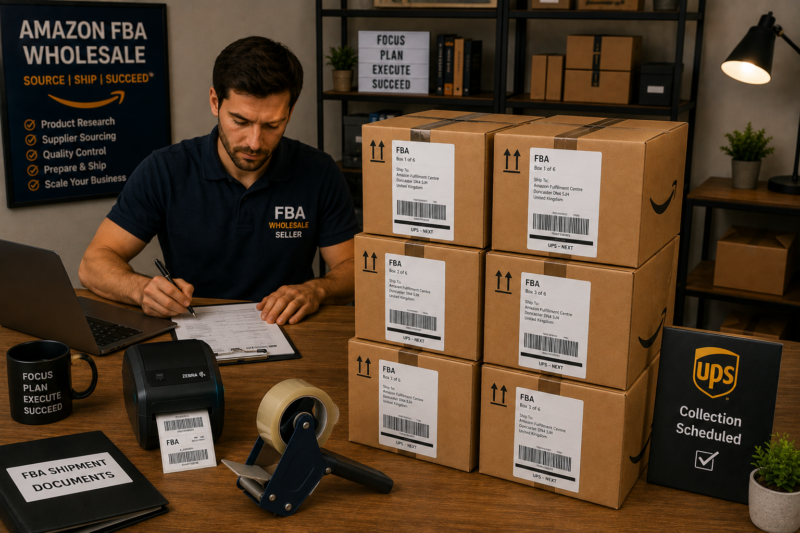
Print the UPS carrier labels generated by Seller Central and apply one to each box alongside your Amazon box label. Drop your boxes at the nearest UPS Access Point or wait for your booked collection. Once handed over your tracking number is automatically registered in Seller Central — no need to enter it manually when using the Partnered Carrier programme.
Monitor Your Shipment Check-In
Track your shipment status in Seller Central under Manage FBA Shipments. Once Amazon receives and begins processing your delivery the status changes from Shipped to Receiving. Individual units become Available as Amazon checks them in — typically over 1 to 5 business days depending on the fulfilment centre workload. Your listing goes live for sales as units are checked in and made available in inventory.
What to Expect After Your Shipment Arrives
| Status | What Is Happening | Typical Timeframe |
|---|---|---|
| Shipped | Shipment in transit with courier | 1 to 3 business days |
| Receiving | Amazon scanning and counting your units at the warehouse | 1 to 5 business days |
| Available | Units live and available for customers to purchase | As units are checked in |
| Closed | Shipment fully received and reconciled — all units accounted for | 3 to 10 business days after arrival |
Common First Shipment Mistakes to Avoid
| Mistake | Consequence | Prevention |
|---|---|---|
| Inkjet or laser-printed labels | Labels smudge or fail to scan — units quarantined | Use thermal printer exclusively for FNSKU labels |
| Not covering original barcodes | Scan error — wrong product received in system | Completely cover every existing barcode on every unit |
| Box over 23kg | Shipment rejected or handling surcharge charged | Weigh every sealed box — no exceptions |
| Incorrect unit count declared | Inventory discrepancy investigation — delayed availability | Count stock twice before entering quantity in Seller Central |
| Products moving inside box | Damage in transit — customer returns and negative feedback | Fill all empty space — shake test before sealing |
| Using masking tape to seal boxes | Boxes open in transit — stock damaged or lost | Only use 50mm+ clear packing tape — H-tape method on all seams |
Planning Your Reorder Before Stock Runs Out
While your first shipment is in transit and being checked in at Amazon this is the perfect time to plan your reorder. Use Keepa to estimate your expected monthly sales velocity from the listing’s historical data and calculate how many days your current stock will last. Set a reorder trigger at 21 days of stock cover — accounting for your supplier lead time plus the time needed to ship to Amazon and be checked in. Sellers who reorder proactively never go out of stock. Sellers who wait until they are nearly out of stock regularly miss sales and lose Buy Box share.
You can also use AMZScout or Helium 10 to cross-validate your sales velocity estimate and get an independent read on monthly unit sales — particularly useful for your first few products where you do not yet have your own sales data to reference.
Conclusion — Your First Shipment is the Hardest One
Every FBA wholesale seller remembers their first shipment as the most time-consuming and nerve-wracking. By your second or third shipment the entire process feels routine and takes a fraction of the time. The goal for your first shipment is simply to do it correctly — follow every step in this guide and your stock will arrive, check in cleanly and go live without issues.
Once your listing is live focus on monitoring your Buy Box percentage, watching your sales velocity and planning your first reorder. The rest of the process — from finding your next wholesale product to contacting new suppliers — continues in parallel through our Brands Directory and course library.
FIND YOUR NEXT WHOLESALE PRODUCT TO SHIP
Browse 5,000+ Verified Wholesale Brands Free
With your first shipment on its way start researching your next wholesale product. Browse our free directory of verified FBA-compatible brands — all with direct trade contact details and Amazon marketplace confirmed.
About the Author
This article is written by the team at Brandhunterz Ltd — a UK registered Amazon FBA wholesale sourcing company (Company No: 15342697) registered in England and Wales since 2023. Visit brandhunterz.com to learn more.